USB Redirector RDP Edition - USB support for Remote Desktop
USB Redirector RDP Edition allows redirecting your local USB devices into a Remote Desktop session on remote computer, terminal server, virtual machine or cloud desktop.
This software product features USB HID support and unique technology of per-session isolation which prevents other users from accessing your USB devices when working on multi-session servers!
The program consists of two parts: workstation part and server part, both parts are included in the download package. All you need is install workstation part on a local computer (where your USB devices are physically attached) and server part on remote computer.
Features
There are several major features that differ USB Redirector RDP Edition from other remote USB programs.
- Developed for Remote Desktop: Conveniently transfer USB devices via active RDP (mstsc) or Citrix ICA connection. No need to configure firewall or TCP ports.
- Easy to install: Workstation part should be installed on RDP client, while server part is for RDP server. Works immediately without complicated configuration.
- Per-session isolation of USB devices: Provides per-session isolation for redirected USB devices on multi-session servers. Please refer to Frequently Asked Questions below for a list of supported devices.
- USB HID support: Works with USB HID devices, including devices that present themselves as USB Keyboard or USB Mouse. All input is routed directly into user session.
- Safe-remove icon inside session: Safe-removal (Eject) icon for USB Storage devices inside remote session provides familiar user experience.
- Device Policy and Exclusions List: Allow fine control over which devices can be redirected.
- Auto-sharing of USB devices on workstation: Allows fully automatic operation without the need for manually sharing individual USB devices. Can be combined with Device Policy for precise control.
- Linux support: USB Redirector for Linux can be used as a workstation part on Linux systems. It works with rdesktop and FreeRDP clients.
- Legacy systems support: Still works with legacy systems like Windows 7, XP and 2003 via separate legacy version.
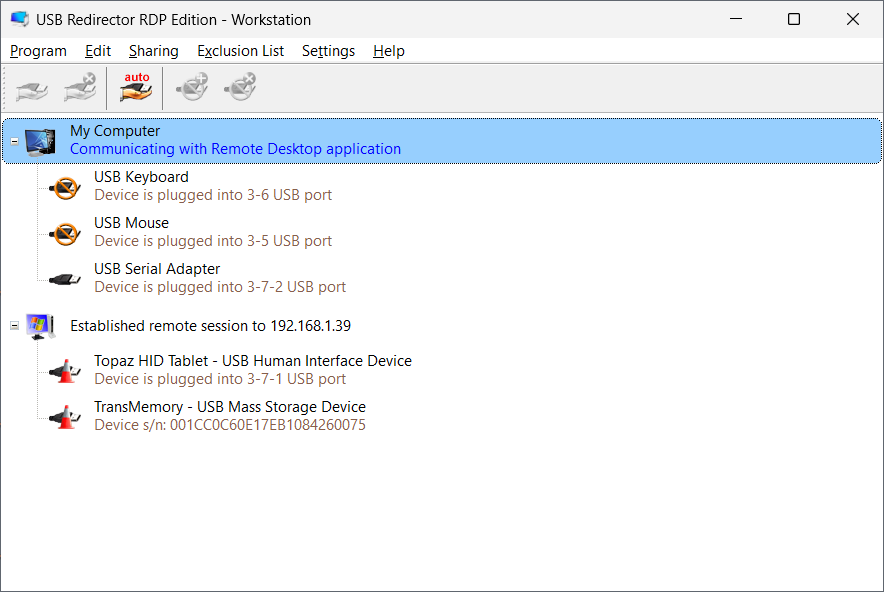
workstation part
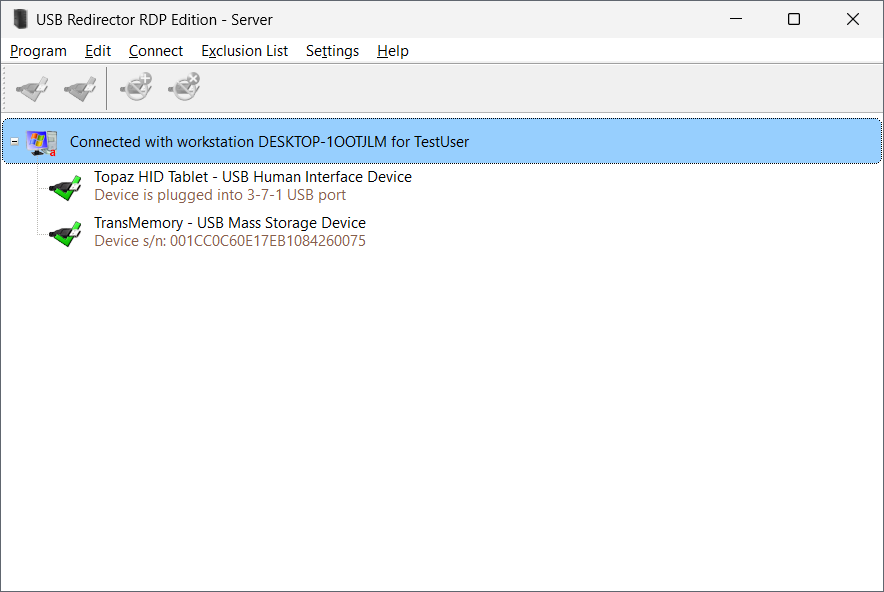
server part
Seamless Remote USB Solution
- Suitable for VDI / Virtual Desktops where you need to use USB devices inside a remote session on single-user virtual desktop or virtual machine, including Amazon AWS, Azure AVD, Citrix Desktops, Citrix Virtual Apps and others.
- Suitable for Terminal Servers / Remote Desktop Session Hosts (RDSH) and multi-session machines where multiple users are working concurrently. Thanks to per-session isolation, users can use their USB devices without interferring with each-other. Please see Frequently Asked Questions below for more details on isolation support.
- Suitable for generic Remote Desktop connections where USB redirection is needed.
How to use USB Redirector RDP Edition
- Step 1. Install Workstation part of the program on user's workstation (laptop, thin client, etc.) where USB devices are physically attached.
- Step 2. Install Server part of the program on Terminal Server (Remote Desktop Session Host), Virtual Machine or other remote computer where you wish to use USB devices remotely.
- Step 3. Share USB device on Workstation:
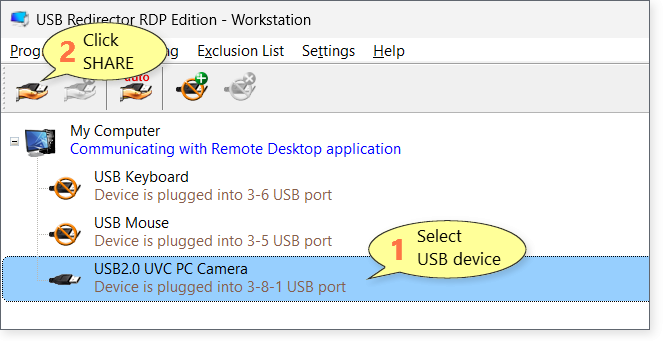
Please note that shared USB devices can not be used locally on workstation, because they are acquired for redirection into the remote session! To make them available locally, you need to unshare them.
- Step 4. Start Remote Desktop Client and log into the remote computer:
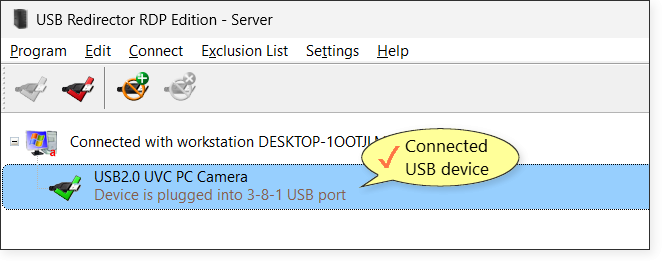
The shared USB device will be connected into your session automatically: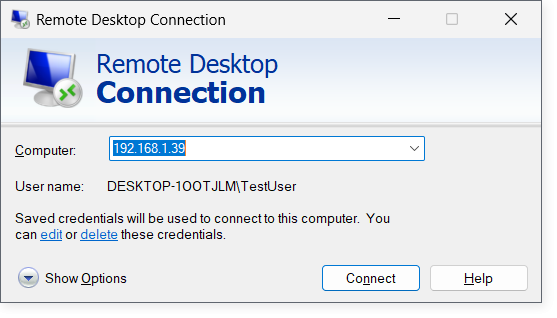
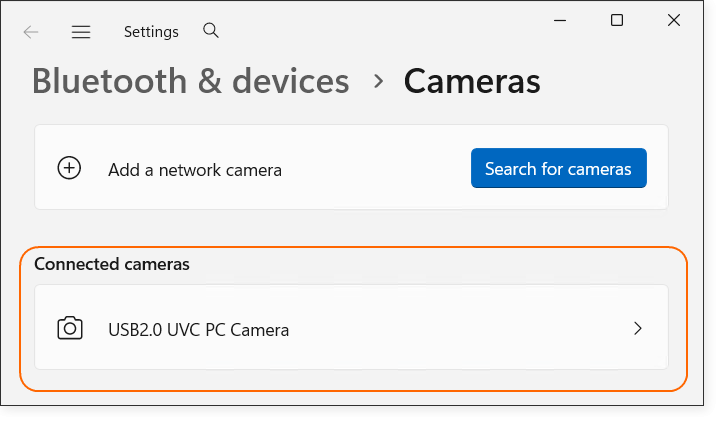
- Result. Now USB device is available in the remote session just like it was attached there directly:
Licensing and Pricing
USB Redirector RDP Edition is licensed on RDP server. You should purchase a license for each computer that acts as RDP server (e.g. Terminal Server, Virtual Machine, Virtual Desktop).
A license allows redirecting a specific number of USB devices at the same time. We offer different licenses with different amount of USB devices, starting from USD 89.00 for 1 USB device. There are quantity discounts when you purchase multiple licenses at once. Please check the Purchase page for details.
System Requirements
USB Redirector RDP Edition works on the following systems (32-bit/64-bit/ARM).
Windows Desktop:
- Windows 11
- Windows 10
- Windows 8.1
- Windows 8
- Windows 7 (SP1 with KB4474419 update)
- Windows Vista (SP2 with KB4474419 update)
Windows Server:
- Windows Server 2025
- Windows Server 2022
- Windows Server 2019
- Windows Server 2016
- Windows Server 2012 R2
- Windows Server 2012
- Windows Server 2008 R2 (SP1 with KB4474419 update)
- Windows Server 2008 (SP2 with KB4474419 update)
The following legacy systems are supported via separate legacy version:
- Windows XP (SP3 or newer)
- Windows Server 2003 (SP1 or newer)
Linux:
- Linux systems can be used as workstation by installing USB Redirector for Linux in USB server mode along with rdesktop or FreeRDP clients.
Frequently Asked Questions
What are the trial limitations?
USB Redirector RDP Edition is fully functional during trial period and allows redirecting up to 2 USB devices simultaneously. The trial is activated when you install the program for the first time and lasts for 15 days.
If you need more time or need to test with more USB devices, please freel free to contact us for an extended trial.
What USB devices are supported?
USB Redirector RDP Edition supports virtually any USB devices, but there might be limitations related to remote session environment: some USB drivers or USB software may function incorrectly inside remote session. We strongly recommend to try the free trial and make sure your USB devices are functioning properly.
Some of the known limitations include USB Audio devices and PC/SC smartcard readers which are not accessible inside remote session (this is deliberate limitation for remote sessions by Windows itself).
Why USB per-session isolation is important?
USB devices in Windows are treated as system-wide resource, meaning they are accessible to all users. Such approach works fine when you are physically at the computer, but causes all kinds of issues in multi-user environment of Terminal Server: devices may not work as expected, users may access each-others USB devices or get confused by which USB device belongs to which user on the server.
Although Windows provides some means to limit access to devices of particular types, this is generally not enough to assign a specific USB device to a specific user. With the help of our unique per-session device isolation feature, it is possible to solve the problem. USB Redirector RDP Edition can isolate users' USB devices in their RDP session, so that they can not be accessed in other sessions.
What USB devices can be isolated per-session?
Currently we support isolation for the following devices:
- USB Mass Storage devices: USB Flash Drives, USB Hard Drives, USB SSD, etc.
- USB HID devices: USB Signature Pads, USB Footpedals, some USB Fingerprint Readers, some USB Smart Card Readers, USB Keyboards, USB Mouses, USB Touchpads, etc.
- USB Video devices: Webcams and other USB devices which implement USB Video class (UVC). Only video part is isolated, while audio part is not accessible inside remote session.
- USB CDC devices: USB modems, USB scale, USB swipe readers and other USB devices which present themselves as USB-to-Serial adapters of CDC class.
- Other specific USB devices.
USB device isolation is complicated and has to be developed for each type of a USB device (sometimes even for particular model). Thus, we strongly recommend to test isolation with your devices before using in production.
What can I do if my USB device is not isolated?
Device isolation is complicated and has to be developed and tested for each type or even model of a USB device. We encourage you to check the free trial and see how it works with your USB devices. If your device is not isolating, contact us to check for possibility to add isolation.
Is it possible to run the program as a system service?
USB Redirector RDP Edition works as a service, this means you don't have to keep the app open all the time. Your devices will continue redirecting even if you close the program. You may want to enable system tray icon in program settings for easy sharing and unsharing of your USB devices.
Can I redirect USB keyboard or USB mouse?
Yes! USB Redirecrtor RDP Edition allows redirecting USB devices that present a USB keyboard or USB mouse function (USB Barcode readers are one of the examples). All input will be automatically routed into your session.
What's Next
You can try USB Redirector RDP Edition for free during 15 days! If you got any questions, don't hesitate to contact us, we are here to help!
Download Free Trial
Fully-functional during 15 days
v4.0.0.3620
Related Products